Algo trading

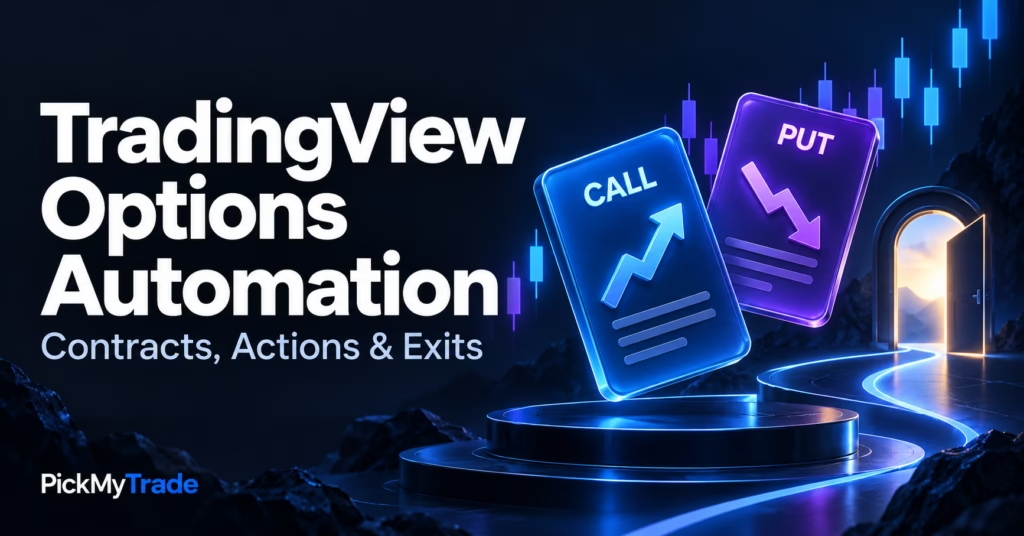
TradingView options automation illustration with call and put contract cards, candlesticks and an exit doorway.
Algo trading, Trading

TradingView Options Automation: Contracts, Actions & Exits

TradingView options automation needs an explicit contract, opening or closing intent, quantity and exit association. A bullish or bearish chart signal does not supply those decisions automatically. Identify the option the broker will trade, confirm the action it will receive, and establish how later exits will reach that same position. A common mistake is treating
Invite-only indicator automation cover featuring a blue padlock, alert bell and checklist with PickMyTrade branding.
Algo trading, Trading

Automate an Invite-Only Indicator: Readiness Checklist

To automate an invite-only indicator, you need an accessible alert trigger or usable plot condition, a message compatible with the execution service, and clear rules for entries, exits and position size. Source-code access is not always required. A buy label on the chart, however, does not establish that the script exposes a usable automation event.

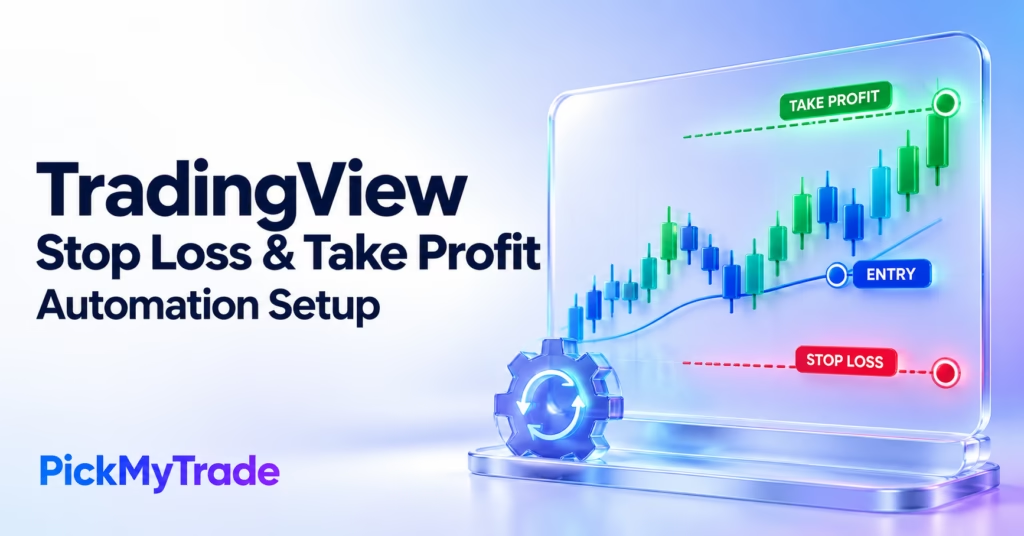
TradingView stop loss and take profit automation illustration showing a candlestick chart with entry, green target and red stop levels.
Algo trading, TradingView

TradingView Stop Loss & Take Profit Automation Setup

TradingView stop loss and take profit automation starts with deciding who manages the exit. If your Pine strategy sends complete exit alerts, configure the strategy-controlled workflow. If your signal needs attached protection, enable supported SL/TP in PickMyTrade, choose the units and generate the message for your connected broker. A stop or target drawn on a

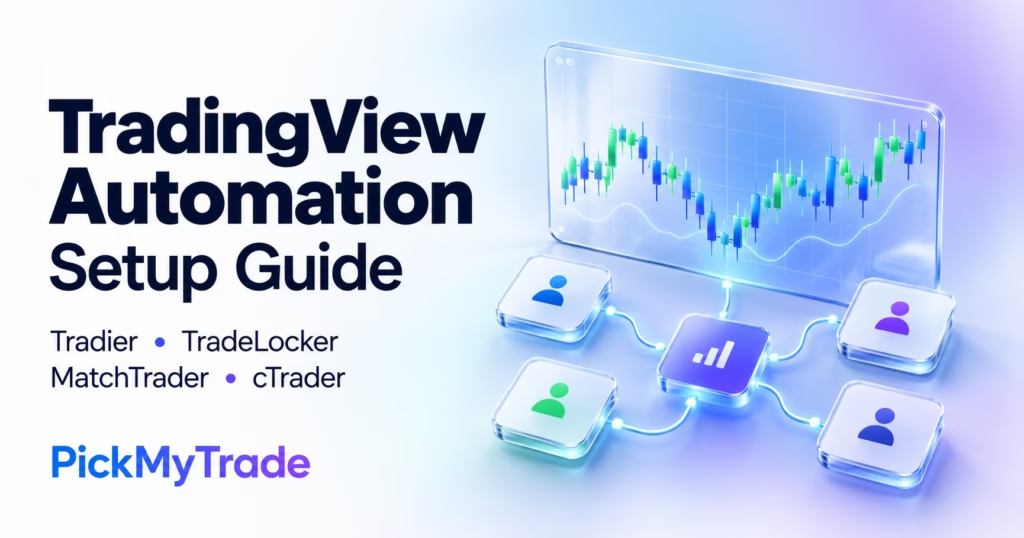
TradingView automation setup illustration showing a trading chart connected to four account icons for Tradier, TradeLocker, MatchTrader and cTrader.
Algo trading, Forex

Tradier Automation: Setup Guide for 4 Trading Platforms

Tradier automation through PickMyTrade connects TradingView alerts to your Tradier stock or options account. TradeLocker, MatchTrader and cTrader use a similar alert-routing process, but their connection methods, instruments and position handling differ. Start by connecting the correct account, then generate a broker-specific message and test an entry and exit. This is a Tradier automation walkthrough

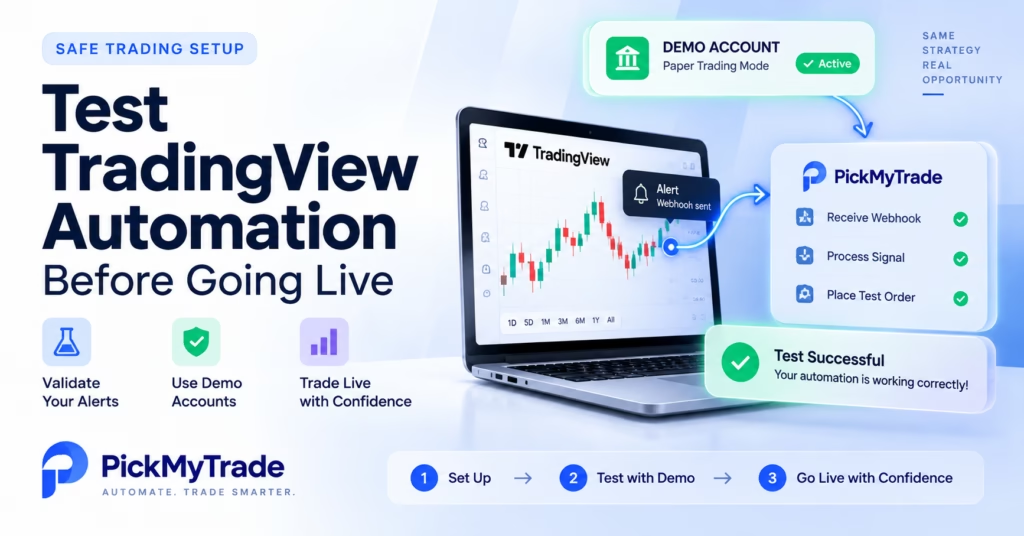
TradingView automation testing workflow showing a demo broker account, webhook verification, and PickMyTrade dashboard.
Algo trading, TradingView

How to Test TradingView Automation Safely Before Going Live

Before connecting a live brokerage account, test the entire TradingView → PickMyTrade → broker workflow in a supported paper or demo environment. PickMyTrade.io supports several broker integrations, and testing options differ by broker. A successful simulated trade confirms your setup, not your future live fills. Use this guide to verify webhook delivery, JSON configuration, symbol

Scroll to Top