
NinjaTrader order lines can disappear when Chart Trader is turned off, the selected account or contract differs from the order, or an ATM display shows only part of the account. First check the Control Center’s Orders and Positions tabs. If the order exists there, inspect the chart selection. If it does not, investigate the order’s actual state before changing the display.
Table of Contents
- Check the order and position records first
- Match the account and instrument in Chart Trader
- Turn on Chart Trader and inspect the selected account
- Check the selected ATM strategy
- Preserve a useful support package
- Validate the display in simulation
- Frequently asked questions
- Does an execution arrow mean a position is still open?
- Does a missing stop line mean the stop was cancelled?
- Should Chart Trader (Hidden) hide order lines?
- Can a restart fix missing lines?
An execution arrow records a completed fill. A later fill may have closed the trade while the old arrow remains. Likewise, a chart with no stop line cannot tell you whether the stop was hidden, rejected, filled or never submitted.
This guide concerns NinjaTrader Desktop’s Chart Trader and Control Center. Similar labels in NinjaTrader Web, Tradovate or third-party interfaces do not guarantee identical settings.
Check the order and position records first
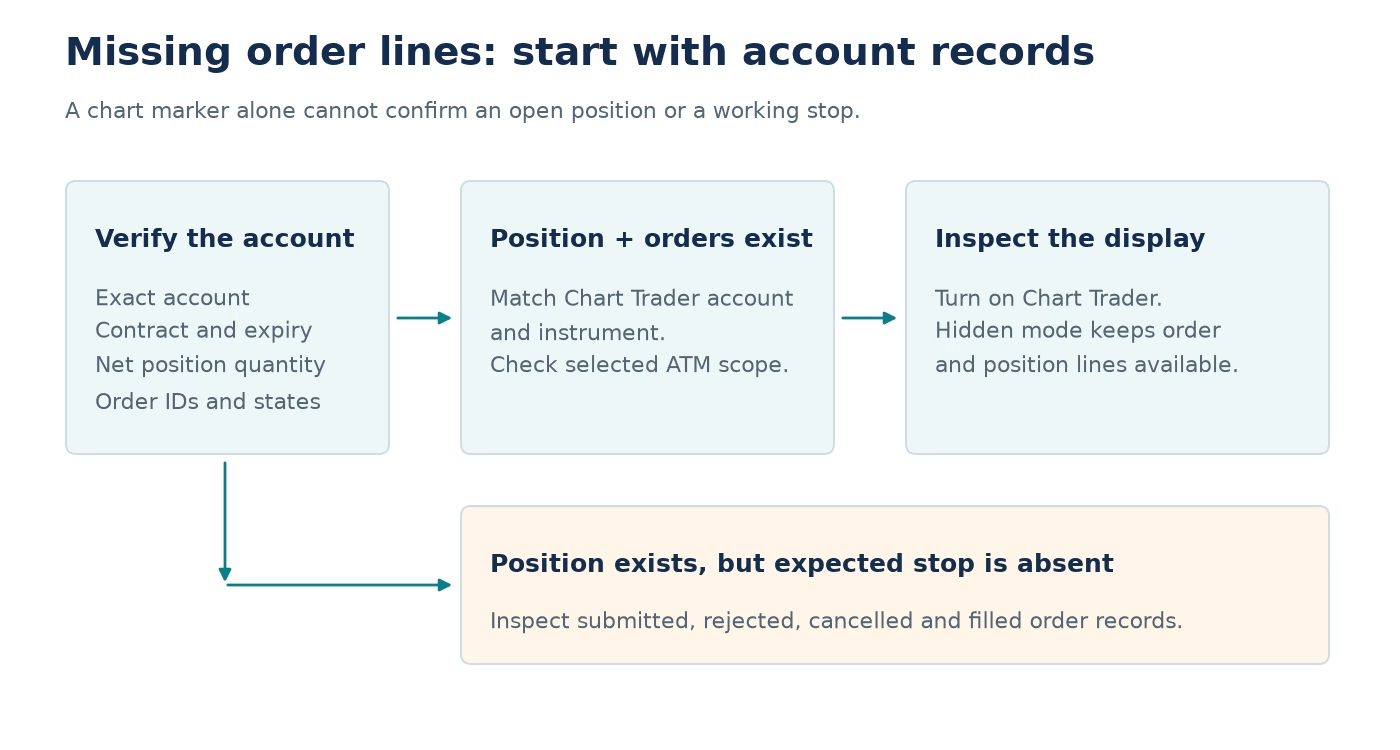
Open the account’s order and position records before changing the chart. Write down the exact account, full instrument including expiry, current net quantity and active protective orders. If you cannot establish those facts, treat the situation as an unresolved order-state issue.
The Control Center Orders tab can be filtered by account and by order status. It provides the order ID, state, quantities and associated strategy information. Check the filters so that a missing row is not simply excluded from view. NinjaTrader Orders tab.
Separate these observations:
| What the records show | What the missing line might mean | Next diagnostic task |
|---|---|---|
| Position and protective orders exist | Chart display or selection issue | Compare account, instrument and display scope |
| Position exists, expected protection absent | Potential order-creation or rejection issue | Inspect submitted orders and messages |
| Account is flat, historical arrow remains | Historical execution marker | Confirm no unintended working orders remain |
| Account state cannot be confirmed | Unresolved state | Use the broker’s supported verification channel |
If an entry or exit filled in pieces, reconcile filled and remaining quantities before comparing the chart with the account. The partial-fill guide gives a worked quantity example.
Do not place another live trade merely to see whether a line appears. That changes the position before the original problem is understood. If you need to test the display later, use a simulation account after resolving any existing exposure.
Match the account and instrument in Chart Trader
NinjaTrader documents that Chart Trader shows orders and positions for the selected account and instrument. It also distinguishes resting order lines from the position line. Market orders themselves are not displayed as resting lines. NinjaTrader order and position display.
Compare the selections character by character. A familiar nickname can conceal a different account. Two charts with the same root symbol may refer to different expiry months. A chart opened from an old workspace can still be pointing at a contract you no longer trade.
On a chart containing multiple instruments, verify which instrument Chart Trader is acting on. Do not assume the visually prominent price panel is the selected trading instrument.
Record a screenshot that includes the chart header and Chart Trader selections, alongside the corresponding account records. That makes a mismatch visible without relying on memory. Redact account information before posting publicly. Retain the original privately for support if needed.
The result of this step should be a precise statement: “This chart is displaying this contract in this account, and those are the same identifiers as the confirmed position.” If the identifiers differ, correct the selection and reassess before changing unrelated settings.
Turn on Chart Trader and inspect the selected account
Chart Trader’s hidden view collapses its panel while retaining order and position display functionality. NinjaTrader documents a toolbar option called Chart Trader (Hidden), as well as restoring the full Chart Trader view. Therefore, a collapsed panel alone does not establish that order lines should be absent. NinjaTrader hidden view.
For diagnosis, restore the full panel so its selections are visible. Review the chart’s current Chart Trader setting rather than repeatedly toggling views without recording the result.
Keep the test controlled. Change one display setting, observe the chart and confirm that the account records remain unchanged. If you modify several options together, you may restore the line without learning what was responsible.
Avoid dragging chart elements while investigating. Some chart objects represent live orders, and moving them can modify an instruction rather than simply rearranging the display. If your goal is reading state, use the records and properties deliberately.
Check the selected ATM strategy
An ATM view may represent a strategy’s portion of the position rather than everything in the account. NinjaTrader documents a Display Selected ATM Strategy Only mode that separates concurrent ATM strategies. Its documentation illustrates this with SuperDOM windows and warns that a selected strategy view can exclude other working orders. Confirm the mode and scope of the order-entry window you are inspecting. NinjaTrader ATM strategy selection modes.
Write down the selected ATM and the account-wide net position separately. A view showing one strategy’s two contracts does not prove that the account contains only two contracts.
For a hypothetical account holding four long contracts, imagine that one ATM manages three and another manages one. A strategy-specific display can legitimately differ from the total. Identify the scope of each number before comparing windows.
Do not switch ATM selections and assume this attaches missing protection or creates new orders. First establish which strategy submitted the existing orders. Display configuration and order management are connected features, but they are not interchangeable repairs.
If the entry was submitted with no ATM selected, investigate whether the expected protective orders were ever generated. Check rejected, cancelled and filled records for that stop before deciding what happened.
Preserve a useful support package
If the account and contract match but the expected lines remain absent, capture the smallest set of evidence that demonstrates the discrepancy:
- NinjaTrader version and connection provider.
- Exact account and instrument, shared privately where appropriate.
- Timestamp and time zone of the observation.
- Position record and relevant order IDs with states.
- Chart Trader mode and selected ATM.
- Screenshot showing what the chart displays.
- Steps already tried, with the result of each step.
Describe the issue using confirmed facts. For example: “The account reports a long position and these two working protective order IDs, but this same-account, same-contract chart does not display their lines.” That is more actionable than “my stop disappeared.”
Avoid restarting or disconnecting as the first experiment while position management is uncertain. Establish how existing orders are held and managed before taking actions that change connectivity. Follow the platform or broker’s guidance for the particular connection.
Validate the display in simulation
After the live account is accounted for, create a small simulation exercise that separates execution markers, open positions and working orders. Record what appears for an entry, a resting limit, a stop and a completed exit.
Repeat the exercise with the full Chart Trader panel and the documented hidden view. If you use multiple instruments or concurrent ATMs, add those only after the simpler display behaves as expected. Use the exercise to check the configuration and display.
Save a reference screenshot for your normal workspace. Include the selected account, contract and ATM scope so that future comparisons do not rely on line color alone.
Frequently asked questions
Does an execution arrow mean a position is still open?
No. The arrow records an execution. Later executions may have reduced, closed or reversed the position. Confirm the current position from the account records rather than reading historical markers as live exposure.
Does a missing stop line mean the stop was cancelled?
Not necessarily. Check the actual stop order’s ID and state. It may be outside the chart’s selected account, instrument or strategy scope. If no protective order exists in the records, investigate that separately and address the exposure through supported broker controls.
Should Chart Trader (Hidden) hide order lines?
NinjaTrader documents that the hidden view retains order and position display while collapsing the panel. Restore the full panel for diagnosis so you can inspect its selections. A missing line requires more investigation than the panel’s visibility alone.
Can a restart fix missing lines?
A restart is not a diagnosis and should not be the first response to uncertain exposure. Preserve records, confirm the position and understand where orders are managed. Use support’s connection-specific instructions if a restart is part of the resolution.
Connect your alerts with PickMyTrade — automated trade execution, no coding required. Start free →