
Want to practice automated trading on Bybit without risking real money? This guide walks you through setting up a Bybit Demo Trading account, connecting it to PickMyTrade, and automating TradingView alerts — all in paper trading mode.
Bybit’s demo account mirrors the live trading environment, so you can test your TradingView strategies with real market data before going live.
What You’ll Need
- A Bybit account (free to create)
- A PickMyTrade account
- TradingView (free or paid plan)
Step 1: Switch to Bybit Demo Trading Mode
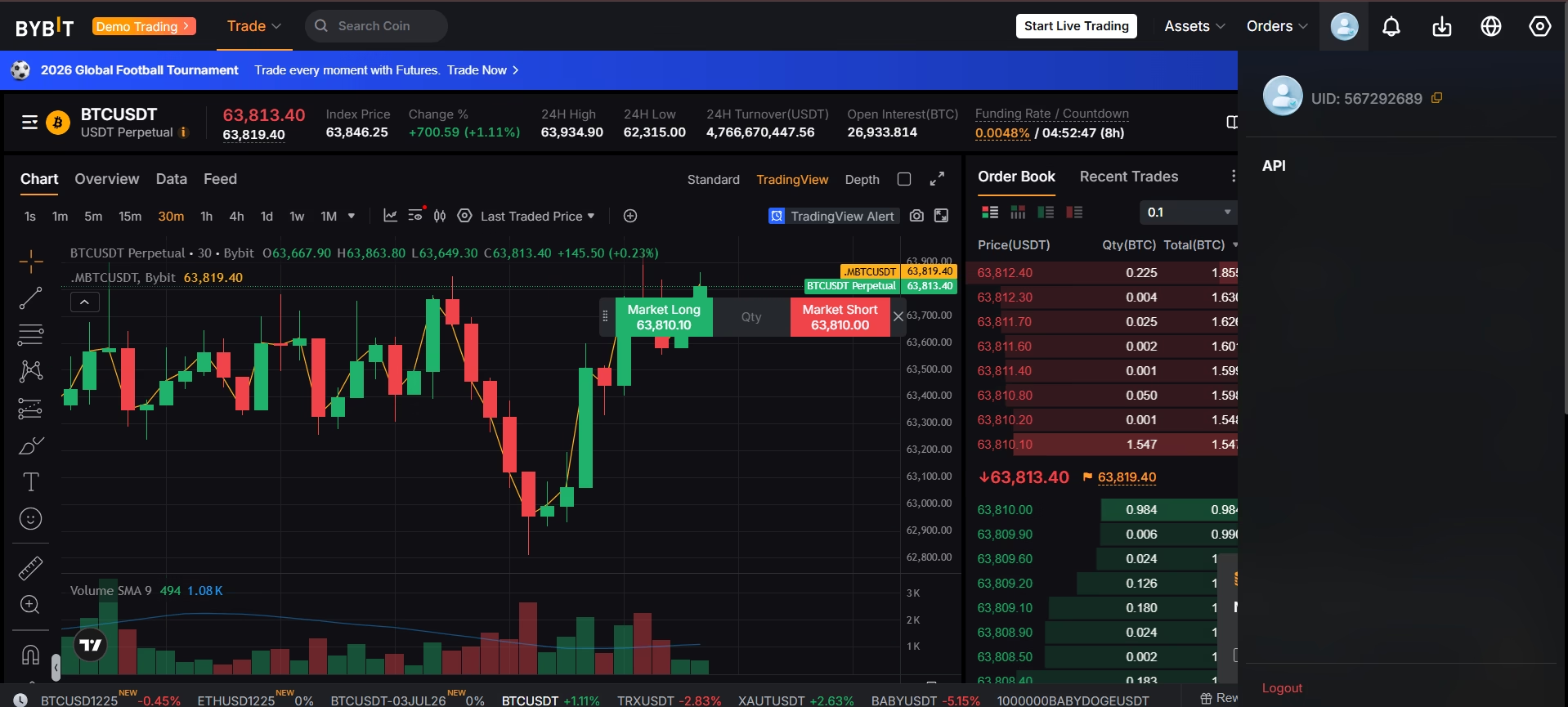
Log in to your Bybit account at bybit.com. Once logged in:
- Click your profile icon at the top-right
- Scroll down in the dropdown menu
- Select Demo Trading
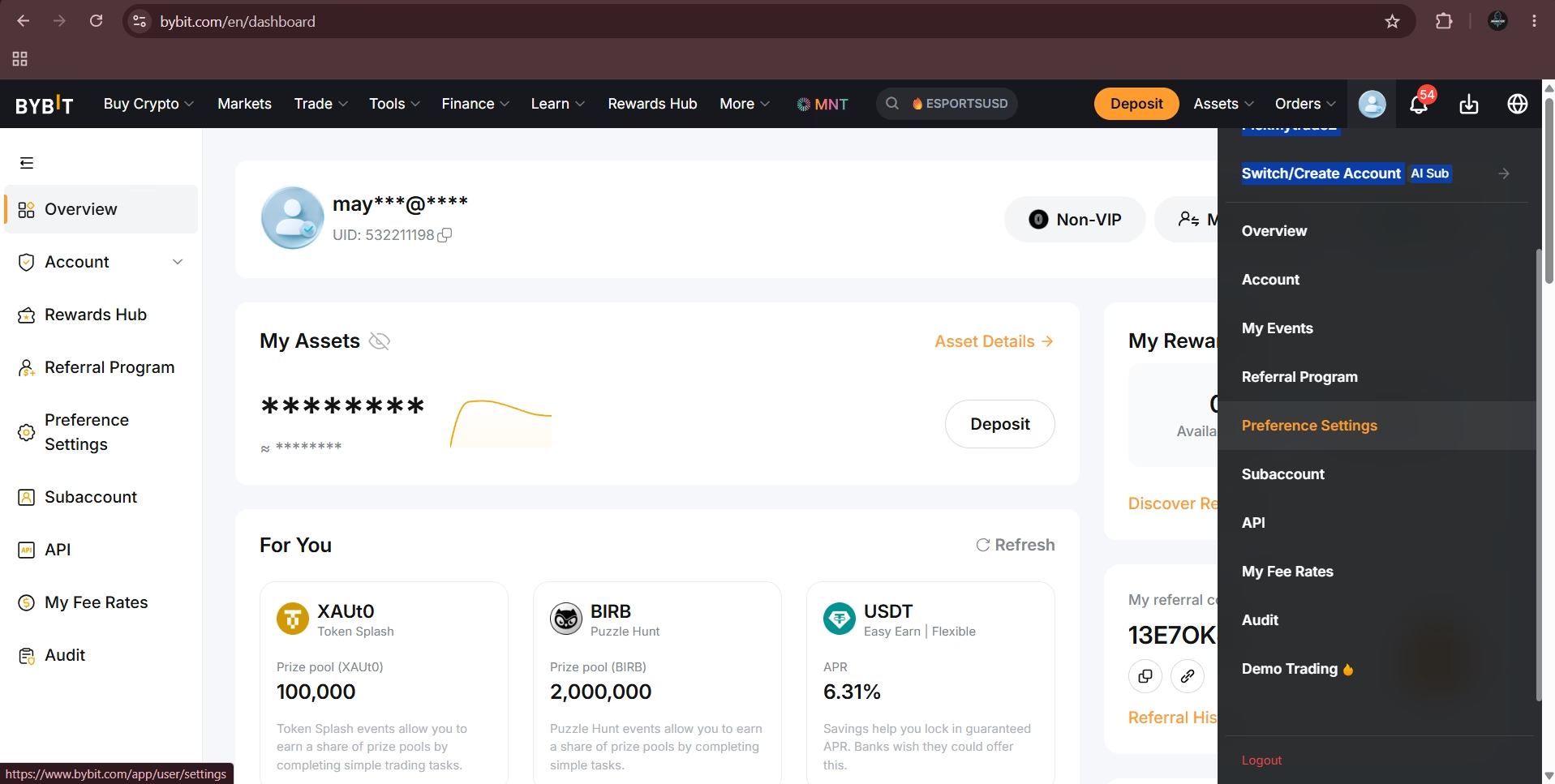
You will notice the orange “Demo Trading” banner at the top of the page — this confirms you are in paper trading mode.
Step 2: Create an API Key in Demo Trading Mode
To connect Bybit Demo to PickMyTrade, you need a dedicated API key created inside the demo environment.
- While in Demo Trading mode, click your profile icon again
- Select API or API Management
- Click Create New Key
- Choose System-generated API Key
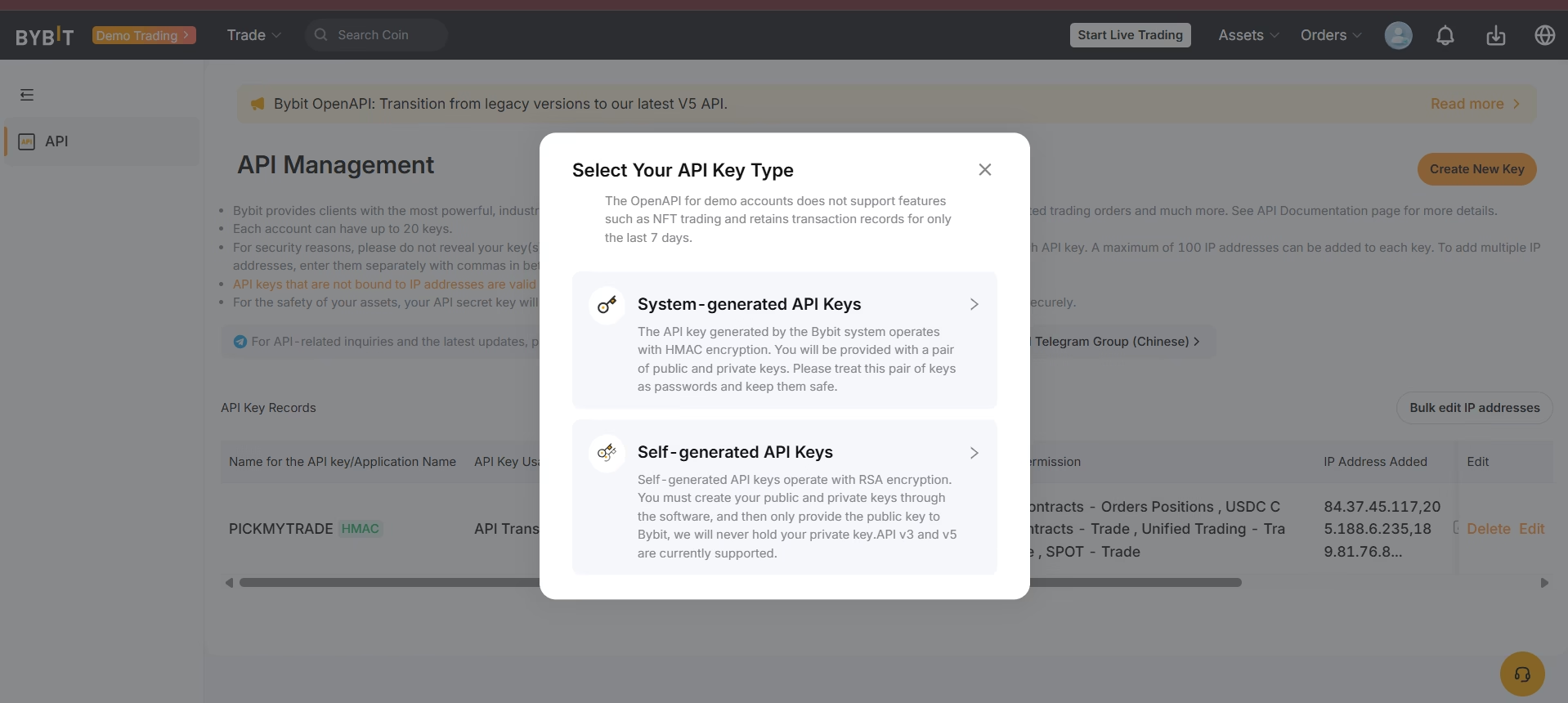
Complete the security verification (email code + Google Authenticator / 2FA) when prompted.
Step 3: Configure the API Key Settings
API Key Usage
- Select API Transaction
API Name
- Enter:
PickMyTrade
API Permissions
- Select Read-Only
- Enable Only IPs with permissions granted are allowed to access the OpenAPI
Restrict to Trusted IPs (Required)
Paste the following IPs exactly into the IP restriction field:
84.37.44.104,84.37.44.19,84.37.45.117| Entry Point | Port | Country | IP Address |
|---|---|---|---|
| ddc.oxylabs.io | 8001 | Singapore | 84.37.44.104 |
| ddc.oxylabs.io | 8002 | Singapore | 84.37.44.19 |
| ddc.oxylabs.io | 8003 | Singapore | 84.37.45.117 |
Enable Trading Permissions
- Under Trade, select Unified Trading
- Click Submit
Step 4: Save Your API Keys
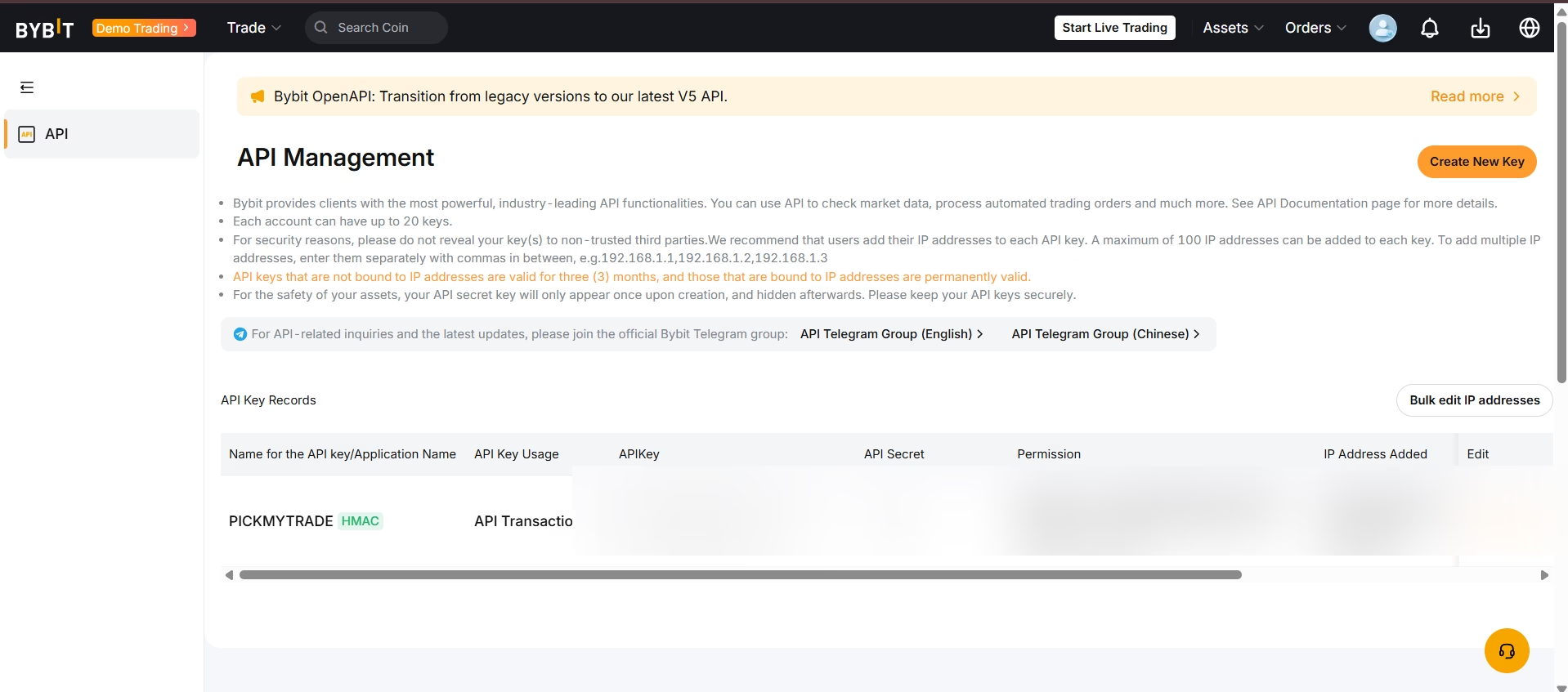
Once the API is created, copy and save both your API Key and Secret Key. The Secret Key is only shown once — store it safely before closing the window.
Your API Management page will confirm the connection is active:
Step 5: Connect Bybit Demo to PickMyTrade
- Go to pickmytrade.io and log in
- Click Connections (top-right)
- Click Add Connection
- Select Bybit as your broker
- Paste your API Key and Secret Key
- Click Create
When the connection button turns Green, your Bybit Demo account is successfully connected to PickMyTrade.
Step 6: Set Up TradingView Automation
With Bybit Demo connected, you can now automate TradingView alerts. PickMyTrade supports both indicator alerts and strategy alerts.
For Indicator Alerts
- In PickMyTrade, go to Generate Alert
- Select BYBIT as broker and INDICATOR as alert type
- Configure symbol (e.g. BTC/USDT), order type, quantity, and SL/TP
- Click Confirm & Generate Alert — copy the JSON code and Webhook URL
- In TradingView: hover over indicator → three dots → Add alert on Indicator
- Paste the JSON in the message box and the Webhook URL in notifications
- Click Create
For Strategy Alerts
- In PickMyTrade, select STRATEGY as alert type
- Choose your exit method: No SL/TP, Attach SL/TP, or Multiple Exits
- Click Confirm & Generate Alert — copy the JSON code and Webhook URL
- In TradingView: hover over strategy → three dots → Add alert on Strategy
- Paste the JSON and Webhook URL, then click Create
For complete configuration details, refer to the PickMyTrade documentation:
- Automating TradingView Indicator Alerts in Bybit
- Automating TradingView Strategy Alerts in Bybit
- Setting Up TradingView Alerts for Automated Trading
Step 7: Verify Your Automation
- TradingView Alerts panel: alert shows Active
- PickMyTrade Alerts page: shows order type, trigger time, symbol, direction, and status
- Bybit Demo: check open positions and order history
Important Notes
- Keep withdrawals disabled on the API key at all times
- Do not remove IP restrictions
- If you regenerate the API on Bybit, update it in PickMyTrade immediately
- The demo API key only works in demo mode — create a separate live API key when ready to trade live
Ready to Go Live?
Once you’ve tested your strategy on the Bybit demo account and are confident in your setup, follow the Connect Bybit with PickMyTrade – Easy Setup Guide to connect your live account and start automating real trades.
Connect your alerts with PickMyTrade — automated trade execution, no coding required. Start free →