
The U.S. jobs report is scheduled for Friday, December 4, 2026, at 8:30 a.m. Eastern (13:30 UTC). If your prop account must be flat before the release, you need time to send a close request, check the broker’s response and deal with any order still working. You also need a way to keep the strategy from opening another position during the restriction.
Table of Contents
Guest contribution by Stefano Capoccia of RetryLab, edited by PickMyTrade. RetryLab created the Event Window indicator and features PickMyTrade in its automation guide. This article is part of that cross-promotion.

Set the news window from the official release time
Add Event Window – prop rules to the TradingView chart you use for the alert. RetryLab’s free, open-source indicator shades the chart around manually entered events. Its published defaults are 15 minutes before a release and 120 minutes after it. Its two alert conditions identify when a window opens and closes.
The November version includes presets for November CPI, December NFP and the December FOMC decision, plus a spare event slot. The calendar inputs need manual updates. In particular, the November 10 CPI preset has passed. If you want to cover December CPI, enter its December date and check the displayed time.
| December 2026 event | What to enter or check |
|---|---|
| Employment Situation (NFP), December 4 | 8:30 a.m. ET / 13:30 UTC. With a 15-minute lead, the intended window begins at 8:15 a.m. ET / 13:15 UTC. |
| FOMC meeting, December 8–9 | December 9 is the decision day. Check the statement and press-conference times separately when choosing the end of your window. |
| Consumer Price Index (CPI), December 10 | 8:30 a.m. ET / 13:30 UTC. Check the indicator slot and recreate the alert after changing the input. |
Dates checked November 12, 2026. Recheck them before each release against the BLS release schedule and the Federal Reserve FOMC calendar.
Read the news rule for your firm, account stage and instrument. Work backward from the earliest restricted time. The 8:15 example is a chart setting. If 8:15 is already your firm’s deadline to be flat, schedule the close request earlier and allow time to verify execution. The indicator’s loss-room panel uses figures you enter by hand. Use the firm’s dashboard for your current limits.
Generate the close instruction in PickMyTrade
In Generate Alert, select the broker connection and permitted demo account. Choose the indicator workflow, confirm the symbol mapping and select Close. Copy the webhook URL and alert message generated for that configuration. Keep the account token and webhook details private.
For example, PickMyTrade’s Match-Trader guide describes the Close action as closing open positions and cancelling pending orders without opening a new trade. Use the instructions for your own connection to establish which account, instruments and orders it affects. If you have multiple symbols or accounts, verify the scope before adding another alert. Match-Trader indicator alert setup.
Connect “Event window opens” to the webhook
- Open the chart for the mapped instrument. Check the event date, time zone, lead time, chart session and timeframe. A chart limited to regular U.S. equity hours can miss a premarket payroll release.
- Create a TradingView alert. Under Condition, select Event Window → Event window opens. The opening condition gives the close message one specific trigger. Use Event window closes for a separate review notification if you want one.
- Set the frequency and expiration. On a time-based chart, Once Per Bar can trigger during the first bar that overlaps the window. Once Per Bar Close waits for that bar to finish. If the boundary falls inside a five-minute bar, the timings can differ by several minutes. Alerts also depend on realtime chart updates. Test the timeframe you intend to use.
- Paste the generated PickMyTrade message into Message and the generated URL into Notifications → Webhook URL. Give the alert a name that identifies the event, account environment and symbol without exposing credentials. Check that it will still be active on release day.
TradingView saves the script, inputs, symbol and timeframe when you create an alert. Changing a date on the chart leaves the existing alert running with its saved settings. Remove the obsolete alert and create its replacement before the next event. TradingView’s alert FAQ.
Keep new entries out of the restricted window
A close request acts on the position at that moment. A separate entry alert could put exposure back on a minute later. If you use PickMyTrade’s Active Hours, check the allowed time slots, the time zone and each slot’s close setting. Confirm that the close request can pass at the selected time and that later entries are blocked. A recurring session schedule may need changing again after a one-off event. PickMyTrade’s Active Hours guide.
If you control the Pine strategy, another option is to guard its entry conditions. Here is the guest draft’s example for a time-based chart. It marks bars overlapping a window from 20 minutes before the December jobs report through 120 minutes after. The example uses a different lead time from the indicator default, so align both settings for your test.
newsT = input.time(timestamp("04 Dec 2026 13:30 +0000"), "Next release (UTC)")
minsBefore = input.int(20, "Minutes before", minval = 0)
minsAfter = input.int(120, "Minutes after", minval = 0)
inNews = time_close > newsT - minsBefore * 60000 and time < newsT + minsAfter * 60000

if longSignal and not inNews
    strategy.entry("Long", strategy.long)
This fragment belongs inside a Pine v6 strategy that already defines longSignal. Apply the same check to other entry paths, including shorts. Keep protective exits available and check orders submitted before the window: a pending entry can still fill after the gate closes. Compile and test the edited strategy before replacing its alerts.
Run a demo test and verify the broker is flat
On a permitted demo account, set the spare event slot ten minutes ahead with a five-minute lead. Use an active chart session and create a fresh test alert. Establish a small demo position on the intended symbol. If pending-order cancellation is part of the setup, include an identifiable demo working order and record its starting status.
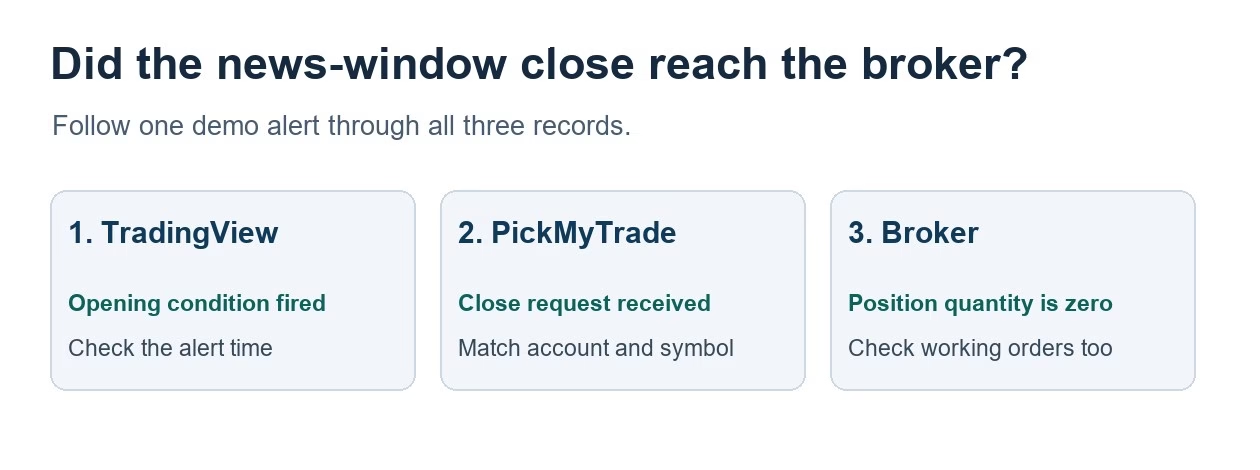
| Checkpoint | What to look for |
|---|---|
| TradingView | The opening condition fired on the intended chart. Record its time and check the webhook delivery status. |
| PickMyTrade | Find the corresponding Close request in the Alert Log. Match the account, symbol, time and processing result. |
| Broker | Check the execution and remaining position quantity. Confirm it is zero for the intended scope. Inspect the orders list separately for anything still working. |
If the broker still shows exposure, check for rejection, partial execution, an incorrect symbol or a later entry before retrying. A market close can slip, and processing may take longer than expected. When the demo behaves as intended, remove the test alert, restore the release inputs and create the event alert from those settings.
For background on separating strategy signals from broker outcomes, see our first guide with RetryLab on TradingView alerts. RetryLab also publishes a Prop Firm Guard indicator for manually tracking loss room and offers an Indicator Builder for custom rules.
Connect your alerts with PickMyTrade — automated trade execution, no coding required. Start free →